Handwritten notes in GoodNotes and Notability: a workflow that lasts all year
How to organise notebooks, set up templates, bring in lecture PDFs and keep handwritten notes on an iPad findable, from the first week to the exams.
4 min read
GoodNotes and Notability are the two apps most students use to write notes on an iPad. Both turn the tablet into a notebook you write in with a stylus, both import PDFs, and both let you export your pages. The apps differ in details, but the problems people run into are the same: hundreds of loose pages, no idea where last month's lecture went, and a stylus that never feels quite like paper.
This guide is a setup that works in either app. It is not a list of every feature, just the habits that keep a year of notes usable.
One notebook per subject, one page per session
The most useful decision is also the simplest. Create one notebook per subject and start a new page for every lesson or lecture. Put the date and the topic at the top of every page. That's all the organisation most people need.
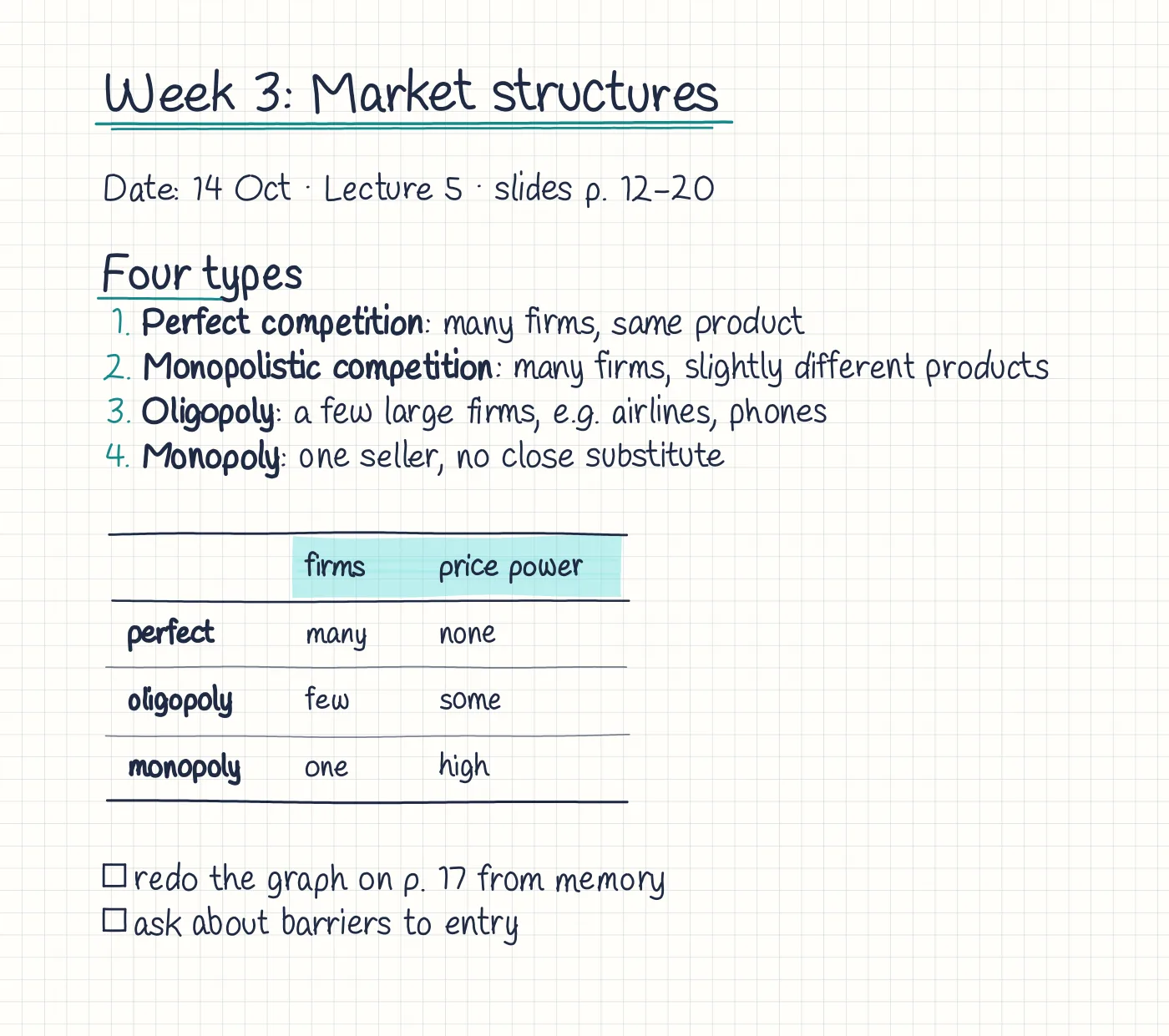
GoodNotes organises notebooks into folders; Notability uses subjects and dividers. Either way, keep the structure flat: a folder per term, a notebook per subject. Deep folder trees look tidy and make things harder to find.
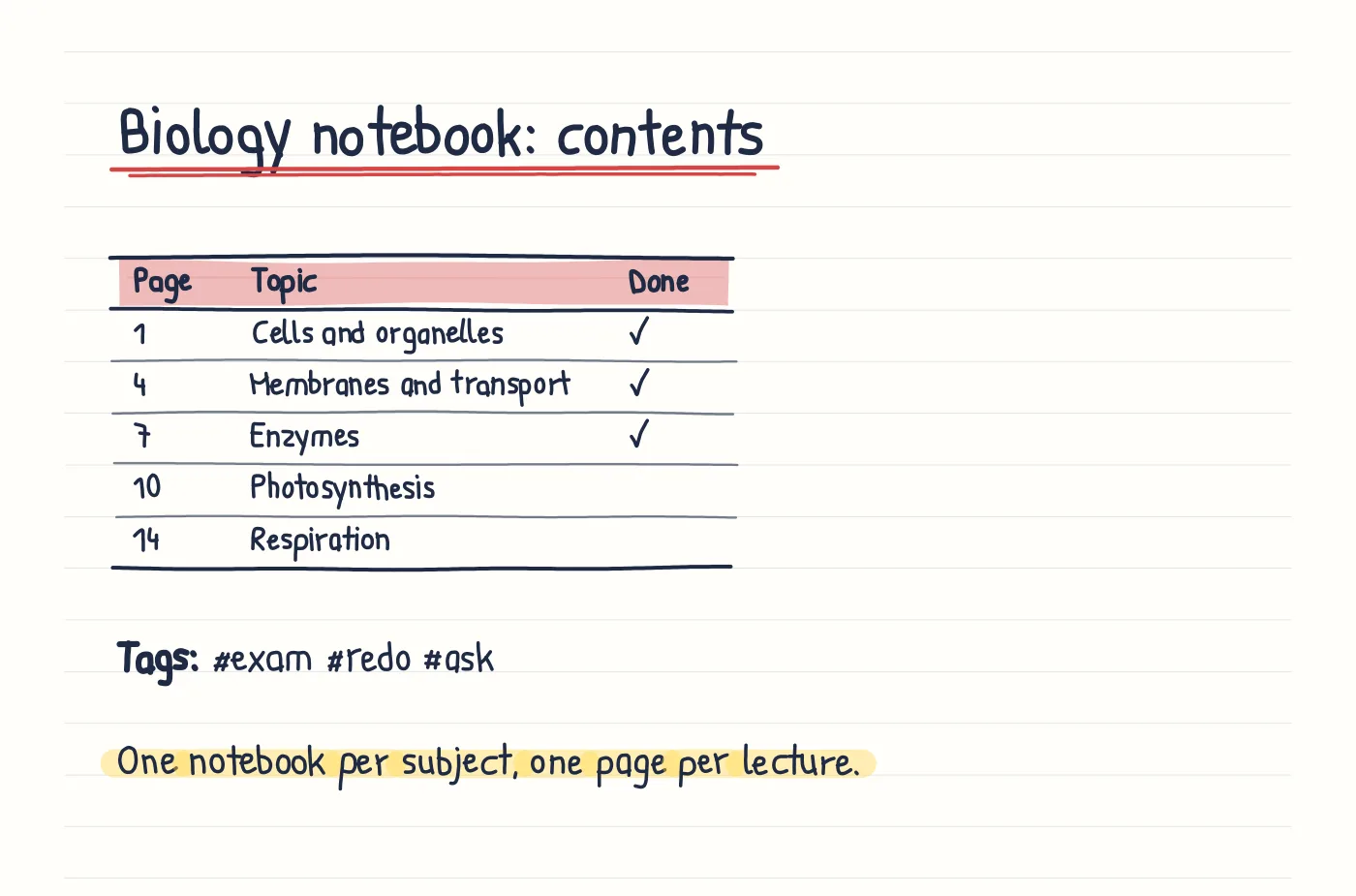
On the first page of each notebook, keep a short table of contents: page number, topic, and whether you have reviewed it. Updating it takes seconds and saves minutes every time you look for something.
Choose the paper once
Both apps offer blank, ruled, grid and dotted paper, and both let you import your own page templates as PDF. Choose per subject:
- Ruled for text-heavy subjects: history, languages, biology.
- Grid for maths, physics, chemistry and anything with tables or sketches.
- Dotted if you like both and want a lighter page.
- A Cornell template (a PDF page with the cue column already drawn) if you use that method; see the guide on study notes.
Set the template as the notebook's default, so every new page matches.
The pen: fewer tools, used consistently
Most people waste time switching pens. Set up three favourites and stick to them: a dark pen for writing, a second colour for definitions or headings, and a highlighter. Use the same thickness for all writing. In GoodNotes you can save pens to a favourites bar; in Notability you can set pen presets. Same idea: fewer choices while the lecture is running.
Two things improve the feeling of writing more than any setting. A matte screen protector adds friction so the stylus does not skid, and palm rejection (writing with your hand resting on the screen) should be checked in the app's stylus settings. Zoom-writing tools, where you write large in a box and the app shrinks it onto the page, help if your handwriting gets messy on glass.
Bring the slides in, but do not drown in them
If your teacher shares slides as a PDF, import them before the lesson. There are two ways to use them:
- Annotate the slides directly. Fast, and good when the slides are dense and you only need to add a few words.
- Keep slides and notes separate. Open the PDF next to your notebook (both apps support split view on the iPad) and write your own summary page.
The second way takes more effort and works better for learning, because you have to decide what matters. The guide on turning slides into handwritten notes is about exactly that.
Use the lasso, not the eraser
The lasso tool is what makes digital handwriting different from paper. Circle part of a page and you can move it, resize it, recolour it, or copy it to another page. That means:
- you can leave space and reorganise afterwards,
- you can copy a diagram from the lecture page to your summary page,
- you can fix a page that ran out of room without rewriting it.
Search and recording
Both apps recognise handwriting for search, so a word you wrote can be found later, as long as it is reasonably legible. That is one more reason to write key terms clearly, even if the rest is quick. Notability can also record audio while you write and link it to your strokes, so tapping a word plays what was said at that moment. Ask before recording a lecture: many universities and schools have rules about it.
A weekly routine
Ten minutes on Sunday keeps the system working:
- Update the table of contents in each notebook.
- Mark pages you have not understood with a tag or a red dot.
- Turn one page per subject into flashcards or questions (see flashcards and active recall).
- Export the week's pages as a PDF backup, or check that cloud backup is turned on.
Backups and exports
Notes you cannot get back are the worst kind of loss before an exam. Turn on the app's automatic backup or iCloud sync, and once a term export each notebook as a PDF and store it somewhere else. A PDF opens anywhere, in any app, years from now.
Where Inkside fits
Not everything you need comes from your own pen. A handout someone typed, a summary you wrote on a laptop, or vocabulary lists are all easier to learn from when they look like the rest of your notebook. Inkside writes typed text in a handwriting style, or in your own handwriting once you have filled in its template, and gives you a GoodNotes notebook or a PDF you can drop into Notability. The pages then sit in the same notebook, on the same paper, as everything you wrote yourself.